
0

Issues with NextDNS on Unifi UDM Pro

I am experiencing a strange issue with NextDNS whilst installed on my UDM Pro.

All my Internet and Lan settings are set to Auto. I have no AdBlocking or Content blocking enabled on the UDM Pro

But approximately every 4-6 weeks, web browsing on WIFI and LAN based devices become extremely slow.  The Behaviour is almost like websites are being blocked.

restarting the NextDNS service on the UDM does not make any difference and does not fix the issue. I have to restart the UDM Pro and everything returns to normal.

I am scratching my head trying to understand what the issue is. Looking at the logs, there does not appear to be any issues.


Anyone experienced such an issue or can help understand what could potentially be going wrong please?

Thanks in advance.

Gary

4 replies

null
    • TechStud
    • 18 hrs ago
    • Reported - view

    Sounds like a DNS cache corruption or a memory leak (either in the NextDNS CLI or the UniFi OS itself). If you are currently using the NextDNS CLI script, here's how to verify next time it happens:


    Before you reboot next time, try this to confirm the theory:

    • Check Memory: Log into the UDM via SSH and run top or htop. Look at the Mem line. If it’s at 95-98%, you definitely have a memory leak.
    • Check Latency: Run nextdns trace in the CLI. If it shows high latency to the "ultralow" server, the issue might be with the routing to the NextDNS node itself.


    If you are indeed using the NextDNS CLI script, recommendation is that for the most stable solution for a UDM Pro in 2025/2026 is to uninstall the CLI and use the UniFi's native DNS Shield feature built into the UniFi OS. Now that it's officially supported, it also survives firmware updates without the weird 6-week degradation you've been noticing.

    Enable DNS Shield:

    • Go to Settings > Security > DNS Shield.
    • Set it to Manual.
    • Select NextDNS as the provider and enter your Profile ID.
    • Note: This will encrypt your DNS (DoH) natively without needing third-party scripts.
      • Gary_Stuart_White
      • 14 hrs ago
      • Reported - view

       OK, so doing some further investigation, and the options you describe are not available.

      If in Settings you enter 'Encrypted DNS':

      There are four options:

      1. Off (Current Setting)
      2. Auto (Not Wanted)
      3. PreDefined
      4. Custom

      Under option '3', PreDefined can search for and choose both IPV4/IPV6 NextDNS Options, but you cannot enter your individual NextDNS ID. They are generic options only.


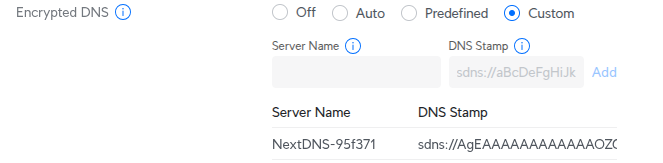
      Under Option '4' Custom, it appears to be looking for a Custom server name and a generated SDN DNS token.

      I presume the Custom server name and SDN is DNSCrypt.


      Any help and advice gratefully received. :)


      Gary

      • TechStud
      • 2 hrs ago
      • Reported - view

       It appears my old instructions need updating! Apologies. You were in the correct place and when you set to Pre-defined and search for NextDNS, you can use those, but I believe they're not tied to any profile/configuration. So instead you will need to use Custom in order to use your NextDNS configuration.


      Clarification: Unifi Network v10 (or later) supports encrypted DNS using the native Unifi OS feature, which leverages DNSCrypt for secure DNS resolution. Here's how:


      1. On your NextDNS Setup page:

      1. Go to Setup Guide > Routers
      2. Scroll down to DNSCrypt
      3. You will need these two values 'server_names' and 'stamp' in step 2 (below)
        1. NOTE: You will only need the content between the single quotes.

      Example: 

      DNSCrypt
      
      Use the following in dnscrypt-proxy.toml:
      server_names = ['NextDNS-95f371']
      
      [static]
        [static.'NextDNS-95f371']
        stamp = 'sdns://AgEAAAAAAAAAAAAOZG5zLm5leHRkbnMuaW8HLzk1ZjM3MQ'


      2. In your UniFi Network, do the following: 


      1. Go to Settings > CyberSecure
      2. Under Encrypted DNS, select Custom
      3. Server Name: <DNSCrypt server_names>
      4. DNS Stamp: <DNSCrypt stamp>
      5. Click Add and Apply Changes
    • Gary_Stuart_White
    • 16 hrs ago
    • Reported - view

    That's fantastic advice, thanks very much. 

    I will keep an eye on the service and try your suggestions if the problem occurs again!

    I am indeed running the NextDNS Script.  I was not aware it was now natively supported.

    Thanks very much for the advice. 

    Gary
Content aside

  • 2 hrs agoLast active
  • 4Replies
  • 37Views
  • 2 Following